Pine Script Guide: How to Build Your Own TradingView Indicator From Scratch
· 6 min read · LunqFX Team
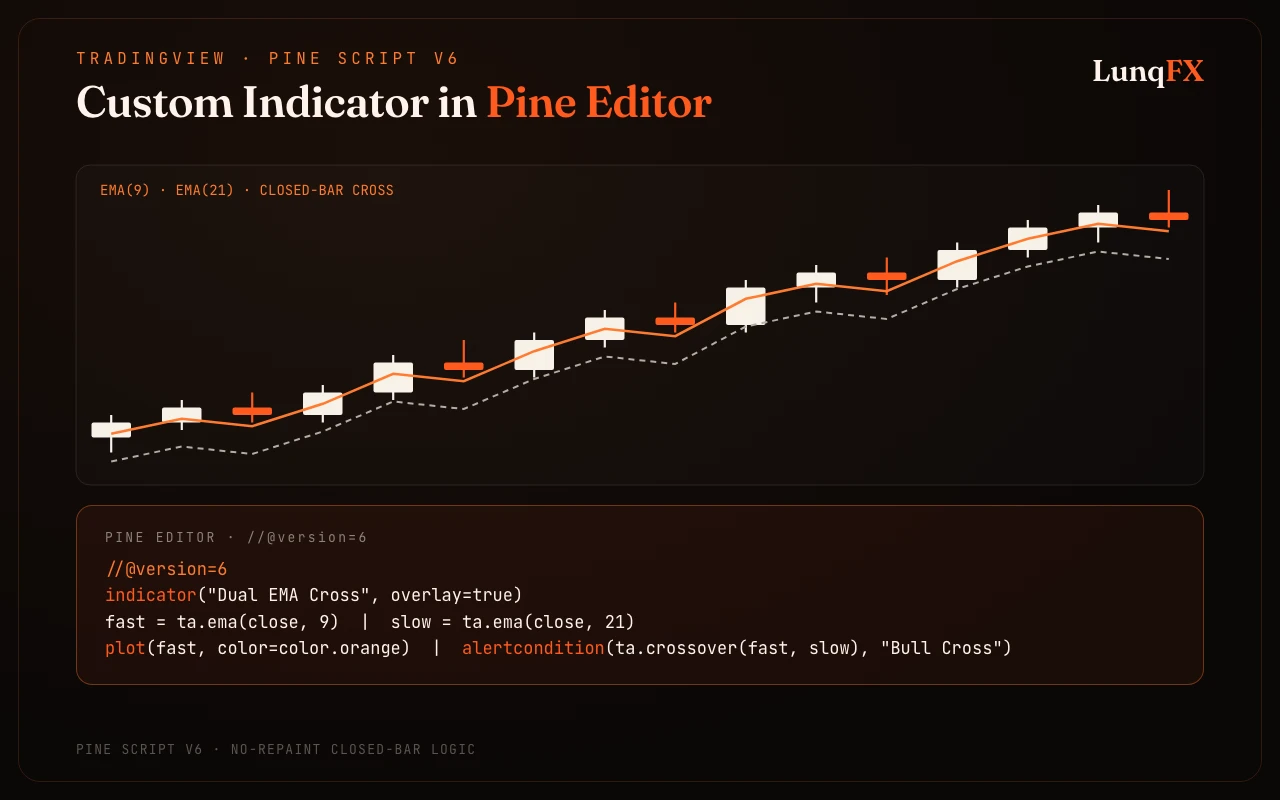
The fastest way to stop buying indicators you don't understand is to build one. Learning how to write a Pine Script indicator takes an afternoon, requires no installation, and changes how you read every other script you'll ever load — because once you've written ta.crossover() yourself, you know exactly what a "proprietary AI crossover engine" is doing under the hood.
This guide takes you from an empty Pine Editor to a working, alert-capable indicator, with code you can paste and modify. No programming background assumed.
What Pine Script Actually Is
Pine Script is TradingView's own language for building indicators, strategies, and alerts. It runs on TradingView's servers, so there is nothing to install and nothing to compile. It is deliberately narrow: you cannot build a general-purpose app with it, but you can express almost any charting idea in a handful of lines.
The one concept that trips up every beginner: Pine executes your script once per bar, left to right across the whole chart. You are not writing code that draws a line; you are writing code that computes one value, which TradingView then runs on every historical bar and connects into a line. Every variable is really a series of values, one per bar.
Opening the Pine Editor
At the bottom of any TradingView chart, click the Pine Editor tab. Use the New → Blank indicator script menu at the top right to start clean. Hit Add to chart to run whatever is in the editor. That is the entire workflow: type, add to chart, look, repeat.
Your First Indicator: The Four Required Lines
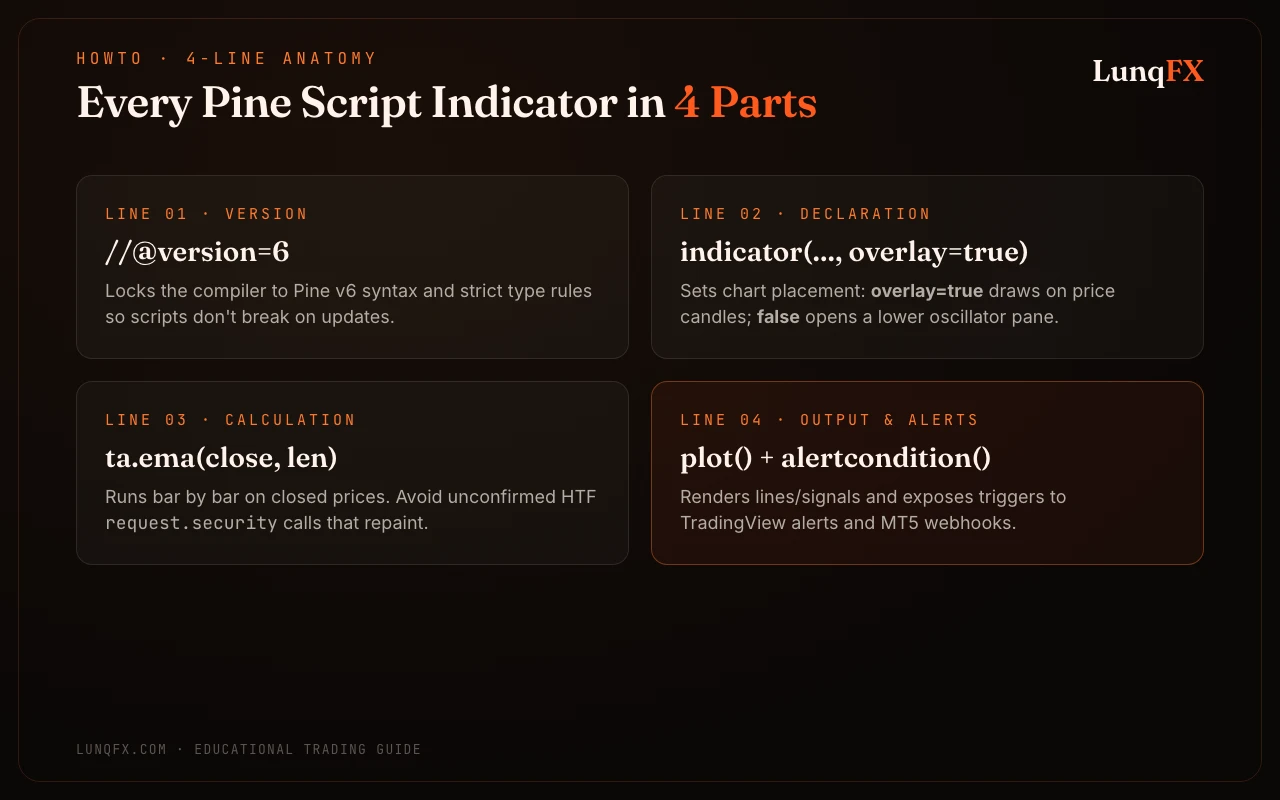
Every indicator script needs the same skeleton:
//@version=6
indicator("My First SMA", overlay = true)
length = input.int(20, "SMA Length", minval = 1)
plot(ta.sma(close, length), color = color.blue, linewidth = 2)
Four lines, and it is a complete, publishable indicator. Here is what each does:
Line 1 — the version annotation
//@version=6 tells TradingView which language version to use. If your editor defaults to v5, the code in this guide runs there unchanged — only that number differs. Always keep this as the first line.
Line 2 — the declaration
indicator() names your script and sets its behavior. The critical argument is overlay: true draws on the price chart (moving averages, bands, levels), false opens a separate pane below (RSI, MACD, volume). Choose wrong and your RSI will try to plot at price 0–100 next to EURUSD at 1.08, squashing the chart flat.
Line 3 — the input
input.int() creates a user-editable setting in the indicator's settings dialog. This is the difference between a script only you can use and one anybody can adapt. Related functions: input.float(), input.bool(), input.color(), input.timeframe(), and input.source() — the last lets users choose whether calculations run on close, open, hl2, and so on.
Line 4 — the plot
plot() draws the series. ta.sma(close, length) is the built-in simple moving average of closing prices. The ta. namespace holds nearly every classic indicator: ta.ema, ta.rsi, ta.atr, ta.macd, ta.highest, ta.crossover.
Adding Signals: Conditions and Shapes
Plotting a line is step one. Signals are conditions:
//@version=6
indicator("EMA Cross Signals", overlay = true)

fastLen = input.int(9,  "Fast EMA")
slowLen = input.int(21, "Slow EMA")

fast = ta.ema(close, fastLen)
slow = ta.ema(close, slowLen)

plot(fast, color = color.aqua)
plot(slow, color = color.orange)

bullish = ta.crossover(fast, slow)
bearish = ta.crossunder(fast, slow)

plotshape(bullish, title = "Buy",  style = shape.triangleup,
          location = location.belowbar, color = color.green, size = size.small)
plotshape(bearish, title = "Sell", style = shape.triangledown,
          location = location.abovebar, color = color.red,   size = size.small)
ta.crossover(a, b) returns true on the single bar where a crosses above b. plotshape() draws a marker on bars where the condition is true.
The Repainting Trap — and How to Avoid It in Your Own Code
Here is where most beginner scripts go wrong, and why understanding this makes you a better buyer of indicators too.
By default, Pine recalculates the current, unfinished bar on every tick. A crossover that is true mid-bar can become false before the bar closes — the arrow appears, then vanishes. That is repainting, self-inflicted.
The fix is to evaluate on confirmed bars only:
bullishConfirmed = ta.crossover(fast, slow) and barstate.isconfirmedOr reference the previous bar's values with the history operator [1], which can never change. The trade-off is honest and unavoidable: you get the signal one bar later, but the signal you backtest is the signal you would actually have traded. Our guide on spotting non-repainting indicators covers how to test this from the buyer's side — writing the code yourself shows you exactly what sellers are hiding when they skip it.
Alerts: Making the Script Notify You
Two mechanisms exist. alertcondition() creates an alert option in TradingView's alert dialog:
alertcondition(bullish, title = "Bullish Cross", message = "Fast EMA crossed above slow EMA on {{ticker}}")The newer alert() function fires programmatically from inside your logic and lets you build dynamic messages — which becomes essential the moment you want alerts to carry structured data to an external system. That is the bridge to full automation, covered in our guide to sending TradingView alerts to MT5 via webhook.
One setting matters more than the code: in the alert dialog, choose Once Per Bar Close, not Once Per Bar. Otherwise a mid-bar condition that later reverses will still have fired your alert — and if that alert is wired to a live account, you have automated your own repainting.
From Script to Strategy
Swap indicator() for strategy() and you unlock strategy.entry(), strategy.close(), and TradingView's built-in backtest report. Two warnings, both learned expensively:
- Default capital settings are fantasy. TradingView defaults to a large equity and no commission. Set realistic capital, commission, and slippage in the strategy properties before you believe any number.
- A backtest with 20 trades proves nothing. You need 100+ trades before win rate and expectancy stabilise — the same statistical floor we cover in the trading journal metrics guide.
Where to Go Next
A realistic progression from here:
- Rebuild an indicator you already use. You will discover its real logic is simpler than its marketing.
- Add a higher-timeframe filter with
request.security()— powerful, and the number one source of accidental repainting, so read TradingView's documentation onlookaheadbefore using it. - Publish to the community library. Reading other people's open-source scripts is the fastest way to level up; our free TradingView indicators guide covers how to tell the good ones from the noise.
Building your own tools has a natural limit — at some point the thing you want (real-time liquidity mapping, volume-at-price across sessions, graded signal quality) becomes a maintenance job rather than a weekend project. That's the point at which buying makes sense. But you'll be buying with informed eyes, which is the whole return on this afternoon.
FAQ
Do I need programming experience to learn Pine Script? No. Pine is deliberately narrow and readable, and a working indicator can be four lines. Basic familiarity with variables and if-conditions is enough to get productive in a day.
Is Pine Script free to use? Yes. Writing, saving, and running scripts is available on the free TradingView plan, though paid plans allow more indicators per chart and more active alerts.
What is the difference between an indicator and a strategy in Pine Script? indicator() scripts only display information. strategy() scripts simulate orders and produce a backtest report with entries, exits, and performance statistics.
How do I stop my Pine Script indicator from repainting? Evaluate conditions on confirmed bars — use barstate.isconfirmed, or reference completed values with the [1] history operator — and set alerts to Once Per Bar Close.
Can I sell an indicator I write in Pine Script? Yes. TradingView supports invite-only publication, where you grant access per user account. Follow TradingView's House Rules for published scripts, which govern how paid access may be advertised.