TradingView Webhook to MT5: How Alert Automation Really Works
· 6 min read · LunqFX Team
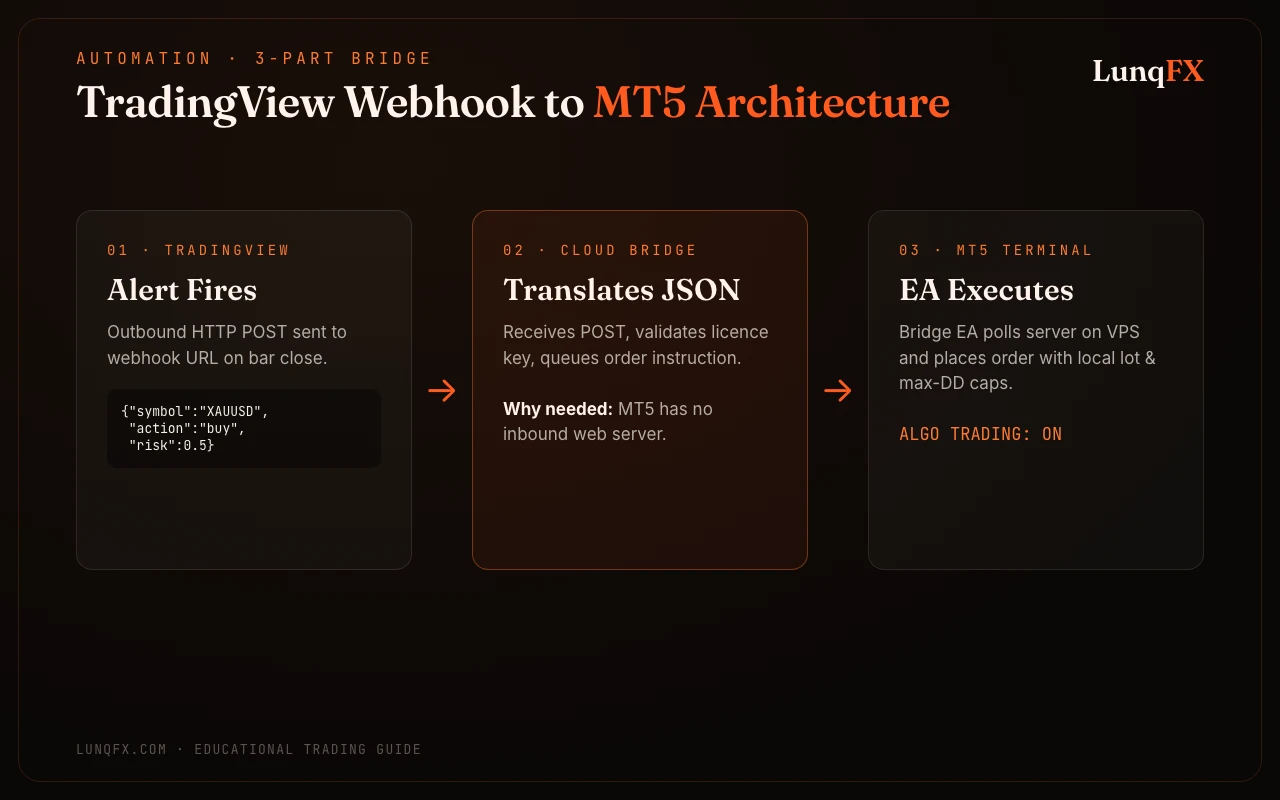
You have a TradingView setup you trust and an MT5 account you trade. The obvious wish is to connect them: alert fires, trade opens, you sleep. Setting up a TradingView webhook to MT5 makes that possible — but not the way most people assume, and the gap between assumption and reality is where accounts get damaged.
This guide explains what actually happens between the alert and the order, walks through the setup end to end, and covers the four settings that cause almost every failure in live automation.
The Fundamental Problem: MT5 Cannot Receive a Webhook
This is the part missing from most tutorials. A webhook is an outbound HTTP POST — TradingView sends a message to a URL. MetaTrader 5 is a desktop application that speaks its own protocol to your broker. It has no inbound web server and no URL to point an alert at. You cannot paste "my MT5" into TradingView's webhook field.
Every working solution therefore has three parts:
- TradingView fires an alert containing a text or JSON message.
- A bridge — a web service that receives the POST and translates it into an instruction MT5 understands.
- An Expert Advisor running inside MT5, which polls or listens for that instruction and places the actual order.
The EA is doing the trading. The webhook is only a messenger. Understanding this reframes the risk correctly: you are running an EA that takes orders from the internet, so every precaution from our guide on evaluating forex robots applies here, plus one more — the instruction source is remote.
Step-by-Step Setup
Step 1 — Make your script alert-capable
Your indicator or strategy must be able to trigger an alert. In Pine Script that means an alertcondition() or an alert() call — see our Pine Script guide if you're writing it yourself. Built-in TradingView drawing-based alerts also work, but they can't carry structured data.
Step 2 — Choose a bridge
Bridge services all follow the same model: they give you a webhook URL and an EA to install. Evaluate them on four things, not on marketing:
- Where does the message go? Your alerts contain your strategy's logic and timing. A bridge sees all of it.
- What happens when it goes down? Ask about uptime history and what the EA does if the bridge is unreachable mid-position.
- Does the EA manage risk locally? The best ones let you cap lot size, max positions, and daily loss inside MT5, so a malformed alert can't send twenty orders.
- What does it cost per month, and is that recoverable from your actual edge? A $30/month bridge on a $2,000 account is a 18% annual drag before you trade.
Step 3 — Install and configure the EA
Copy the bridge's .ex5 file into MQL5/Experts (the folder path and full procedure is in our MT5 installation guide — Experts rather than Indicators, otherwise identical). Then:
- Enable Algo Trading in the MT5 toolbar. If this button is off, every incoming signal is silently ignored. This is the single most common "it doesn't work" cause.
- In the EA's inputs, enter your licence/account identifier from the bridge.
- Allow WebRequest URLs if the EA requires it: Tools → Options → Expert Advisors → Allow WebRequest for listed URL, then add the bridge's domain.
Step 4 — Write the alert message
The message is the instruction. A typical bridge expects something like:
{
  "id": "YOUR_LICENCE_ID",
  "symbol": "XAUUSD",
  "action": "buy",
  "risk": 0.5,
  "sl": 1.5,
  "tp": 3.0
}
Use TradingView placeholders to make it dynamic: {{ticker}}, {{close}}, {{strategy.order.action}}, {{time}}. Check your bridge's exact schema — a single wrong key name usually means the alert fires, the bridge receives it, and nothing happens, with no error anywhere visible to you.
Symbol mapping is the silent killer here. TradingView's XAUUSD may be XAUUSD.r, GOLD, or XAUUSD_i at your broker. If the symbol string doesn't match your Market Watch exactly, orders fail. Map it explicitly in the EA settings rather than hoping.
Step 5 — Create the alert with the right trigger
In the alert dialog: paste the webhook URL under Notifications → Webhook URL, paste your message in the message box, and set the condition trigger to Once Per Bar Close.
That last setting is not optional. "Once Per Bar" fires on an unconfirmed condition that can reverse before the candle closes — you will have automated a repainting entry. Everything in our non-repainting indicators guide applies double when a machine is executing.
Step 6 — Test on demo, in this order
- Fire a manual test alert and confirm the bridge logs receipt.
- Confirm the EA opens a position on a demo account.
- Run demo for at least two weeks, comparing every alert to every fill.
- Only then go live, at minimum size.
The Four Settings That Break Live Automation
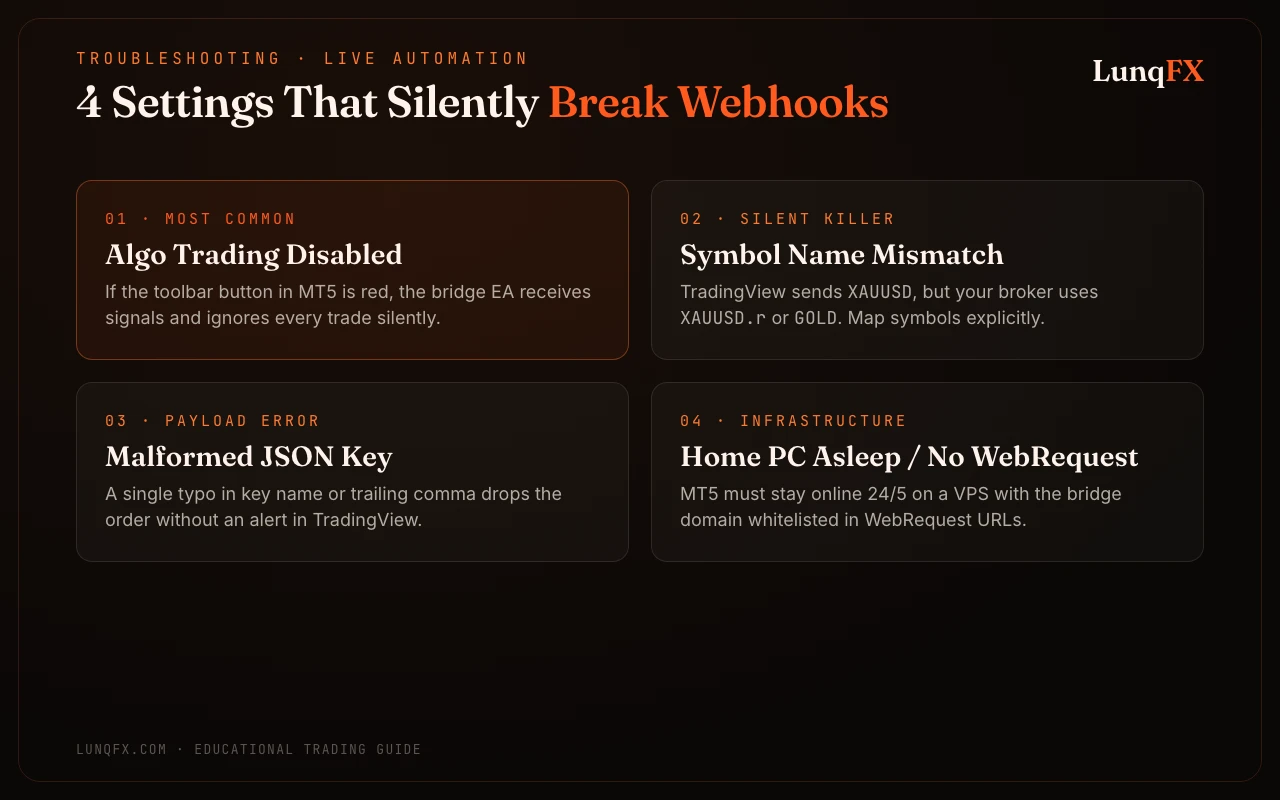
Your computer sleeping. TradingView's alert fires from the cloud regardless, but if MT5 is on your laptop and the lid is closed, the EA is not running to receive the instruction. This is why serious automation runs on a VPS near your broker's server — it removes your electricity, Wi-Fi, and Windows Update from the trade path.
Alert expiry and limits. TradingView alerts have plan-dependent limits on active alerts, and some expire. An expired alert fails silently — the strategy simply stops trading and you find out days later. Check active alerts weekly.
No duplicate protection. Network retries and repeated conditions can deliver the same instruction twice. A good bridge EA de-duplicates by ID; verify yours does, or you will eventually double a position.
Risk defined in the wrong place. If lot size comes from the alert message alone, a decimal typo in a Pine script becomes a margin call. Cap maximum lot size and maximum open positions in the EA settings, where TradingView cannot override them.
Should You Automate at All?
Automate when you have a rule-complete strategy: entries, exits, sizing, and skip conditions all defined without judgment calls. If any part of your process is "and then I look at it and decide," a webhook will faithfully execute the half you specified and ignore the half that was carrying the edge.
The honest alternative, and a better starting point for most traders: use alerts as notifications, not orders. Let the machine watch the chart across every pair and session; you place the trade. You get the coverage benefit without handing an internet message the keys to your account — and you'll learn exactly which of your decisions were rules and which were judgment.
FAQ
Can TradingView connect directly to MT5? No. MT5 has no inbound webhook support. You need a bridge service that receives the alert and an Expert Advisor inside MT5 that places the order.
Do I need a paid TradingView plan for webhooks? Yes. Webhook notifications on alerts are a paid-plan feature; the free plan does not include them.
Why did my webhook alert fire but no trade opened? The usual causes, in order: Algo Trading disabled in MT5, a symbol name mismatch between TradingView and your broker, a malformed JSON key, or the terminal not running at all.
Is it safe to automate TradingView alerts to a live account? Only with local guardrails: cap lot size and open positions in the EA, run two weeks on demo first, and start live at minimum size. The bridge can also see your strategy logic — factor that in.
Do I need a VPS for TradingView-to-MT5 automation? Effectively yes for anything you rely on. MT5 must be running to receive instructions, so a home computer that sleeps, reboots, or loses Wi-Fi will miss trades.