How to Install EA in MT5 Without Breaking Permissions
· 7 min read · LunqFX Team
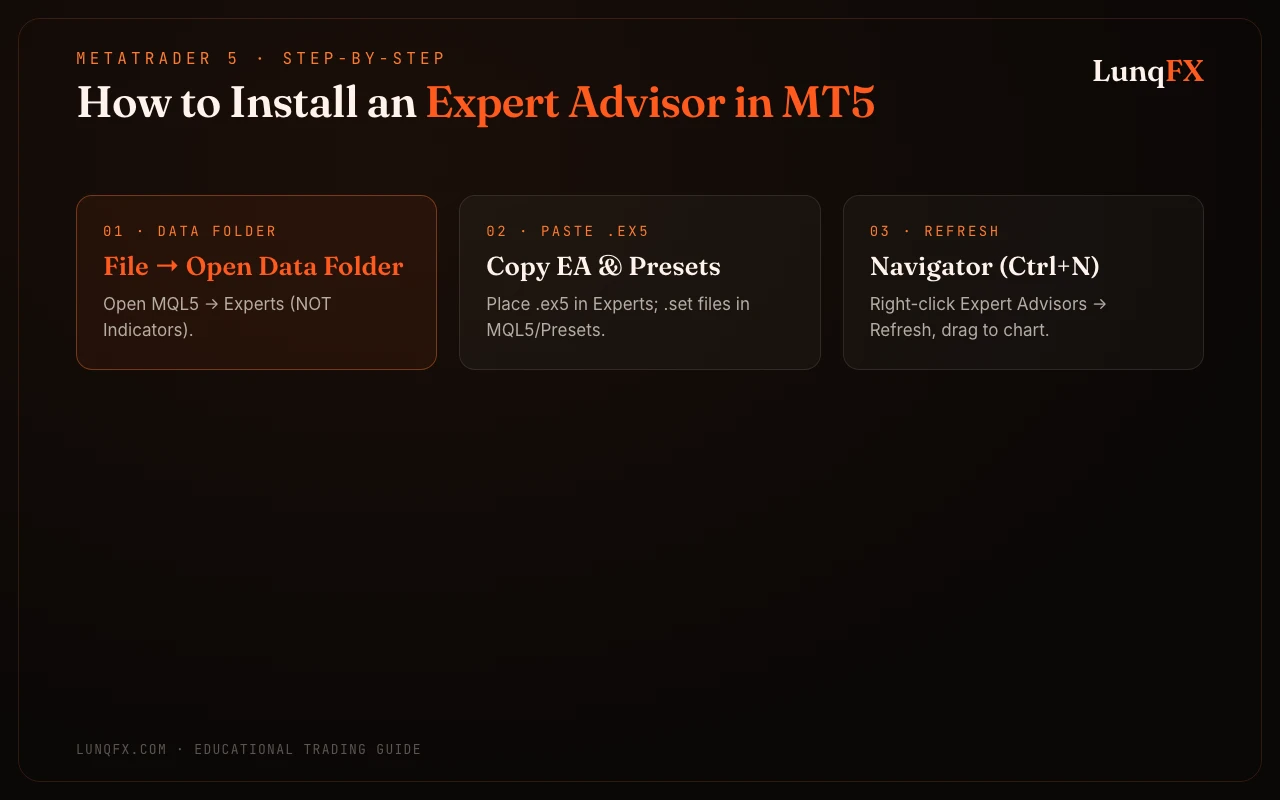
Knowing how to install EA in MT5 looks trivial until you drop a file into the wrong folder, forget to refresh Navigator, or miss one checkbox and watch an Expert Advisor sit dead on your chart for days. MetaTrader 5 stores compiled files, presets, and libraries in a hidden user-specific Data Folder rather than inside Program Files, and it separates installation from execution permissions.
Follow this five-step installation workflow to place your .ex5 file, load any .set preset, clear Algo Trading and WebRequest gates, and confirm in the Experts tab that your EA is live and reading ticks properly.
Before You Start: .ex5 vs .mq5 vs .set Files
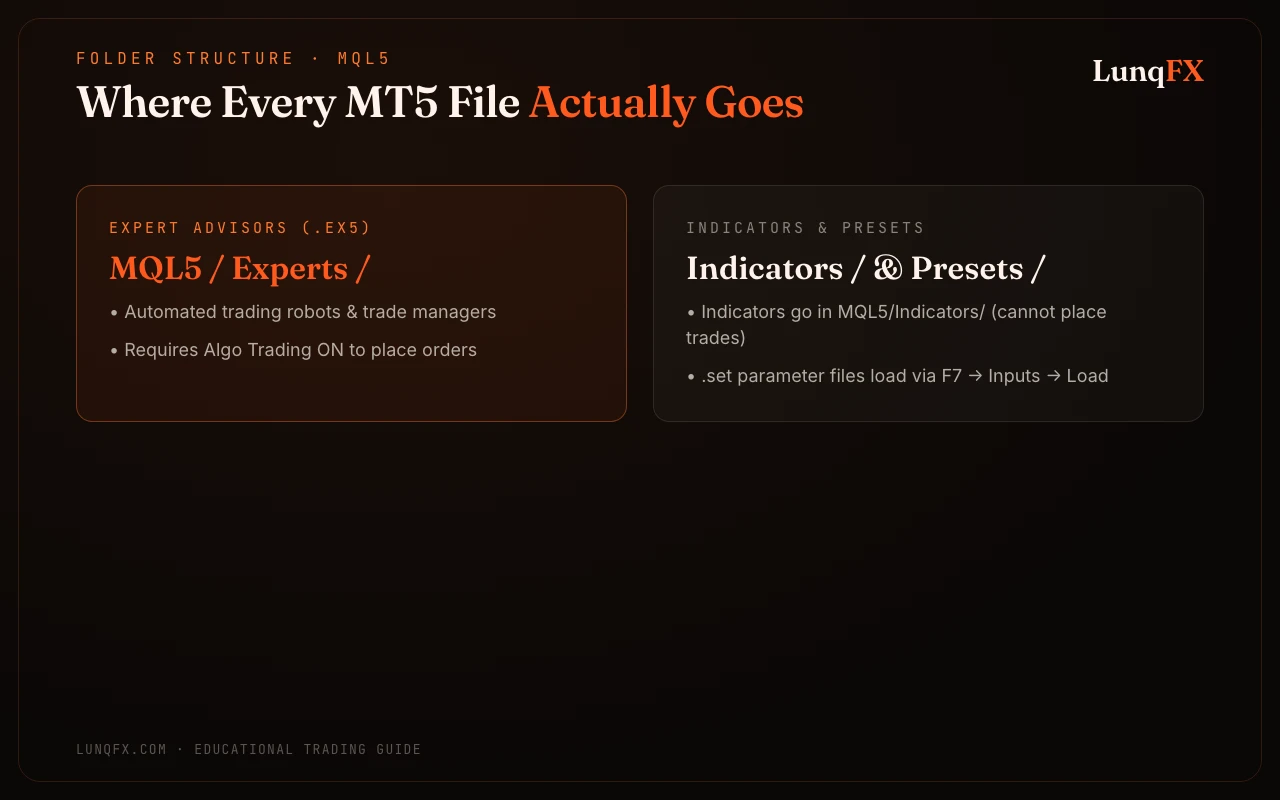
Before opening any folders, check what files came in your download archive so each one lands in the right place:
.ex5(compiled Expert Advisor): the executable file MT5 actually runs on a chart. You only need this file to trade an EA..mq5(source code): optional human-readable MQL5 source file. If you only received a.mq5file, place it inMQL5\Expertsand compile it inside MetaEditor (F4→F7) to generate the.ex5..set(preset file): saved parameter settings (lot size, magic number, session hours, stop loss). Presets belong inMQL5\Presets, notMQL5\Experts..ex5indicators or.dlllibraries: if your EA depends on a custom indicator, install that indicator separately intoMQL5\Indicatorsusing the same workflow as our MT5 indicator installation guide.
If you purchased the EA directly through the MQL5 Market, you do not copy files manually at all — open Navigator → Market → Purchased inside MT5 and click Install so the terminal binds the licence to your machine automatically.
Step-by-Step Installation
Complete these five steps in order. If you are installing on a remote server, perform them directly inside your forex VPS for Expert Advisors rather than on your local laptop.
Step 1: Copy the .ex5 File to MQL5\Experts
Never paste EA files into C:\Program Files\MetaTrader 5. Windows VirtualStore and MT5's portable data structure isolate each terminal's files in its own AppData directory.
- In MT5, click File → Open Data Folder (or press
Ctrl+Shift+D). - Double-click the MQL5 folder, then open Experts.
- Paste your
.ex5file intoMQL5\Experts\(or intoMQL5\Experts\Advisors\to keep it tidy alongside MT5's built-in examples). - If your download includes
.setpreset files, navigate back up toMQL5\Presets\and paste them there so MT5's Load dialogue finds them automatically.
Step 2: Refresh the Navigator Panel
MT5 does not watch the Experts folder in real time while the terminal is open. If you skip this step, your newly pasted EA will not appear in the sidebar.
- Open the Navigator panel (
Ctrl+N). - Expand Expert Advisors.
- Right-click Expert Advisors (or any item under it) and click Refresh.
- Confirm your EA's name appears in the list. If you pasted a
.mq5file without a.ex5, open MetaEditor (F4), locate the file in the left tree, and press Compile (F7) — zero errors means the.ex5is now ready in Navigator.
Step 3: Attach to a Chart and Load Your .set Preset
Open a clean chart for the exact symbol and timeframe specified by the EA developer. Pay close attention to broker symbol suffixes (EURUSD.r, XAUUSDm, USDJPY.pro) — if you attach to the wrong suffix or leave a default symbol hardcoded, the EA will not trade.
- Drag the EA from Navigator → Expert Advisors onto the open chart (or double-click it while the chart is active).
- In the pop-up window, open the Inputs tab.
- Click Load at the bottom-right, select your
.setfile fromMQL5\Presets, and click Open. - Review the loaded parameters carefully — especially lot sizing / risk %, MagicNumber (make it unique if you run multiple EAs on the same account), and GMT offset if the EA trades fixed session hours like NIGHT OWL or SIESTA. Never trust a
.setfile's risk setting blindly without checking it against your account balance.
Step 4: Enable Algo Trading and WebRequest URLs
Attaching an EA does not grant it permission to place orders or talk to external servers. Enable both levels of execution permission before clicking OK:
- Still inside the EA pop-up window, switch to the Common tab and tick Allow Algo Trading (and Allow DLL imports only if the EA's documentation explicitly requires a DLL). Click OK.
- On the main MT5 toolbar at the top, click Algo Trading (
Ctrl+E) so the icon turns into a green play triangle. - If the EA fetches news filters, licence checks, or external signals (for example, bridging TradingView alerts to MT5 via webhooks), open Tools → Options → Expert Advisors, tick Allow WebRequest for listed URL, and add each required
https://base URL cleanly without extra trailing spaces. - Check the top-right corner of your chart: you should see the EA's name next to a blue graduation cap icon. A grey cap means Algo Trading is still blocked at either the toolbar or
F7chart level.
Step 5: Verify Initialisation in the Experts Tab
Never assume an installation succeeded just because the EA name sits on the chart. Open the Toolbox at the bottom (Ctrl+T) and click the Experts tab.
- What healthy output looks like: you should see a line confirming the EA loaded cleanly (for example,
loaded successfullyor the EA's ownOnInitbanner printing your broker spread, account number, and active session status). - What failure looks like: red stop-sign icons,
init failed,Cannot load,4014(WebRequestblocked), or4802(missing custom indicator). - Also check the
Journaltab: confirm your terminal is connected (pingin ms shown in the bottom-right status bar) and that noAutoTrading disabled by servermessage appeared.
If the Experts tab is clean yet the EA still refuses to open trades during its active window, run through our MT5 EA not trading diagnostic checklist to clear symbol suffixes, margin limits, and MQL5 activation bugs.
Quick Reference: Where Every File Type Goes
| File Extension | Purpose | Exact Destination Inside Data Folder |
|---|---|---|
.ex5 (EA) | Compiled Expert Advisor | MQL5\Experts\ |
.mq5 (EA) | Uncompiled source code | MQL5\Experts\ (compile via F4 → F7) |
.set | Saved EA input parameters | MQL5\Presets\ |
.ex5 (Indicator) | Custom indicator called by EA | MQL5\Indicators\ |
.dll | External Windows library | MQL5\Libraries\ |
.ex5 (Script) | One-shot utility script | MQL5\Scripts\ |
Five Mistakes When Learning How to Install EA in MT5
Even experienced traders trip over the same five habits when setting up a fresh terminal:
- Installing into
Program Files: MT5 ignores.ex5files dropped into the installation directory on modern Windows builds. Always use File → Open Data Folder (Ctrl+Shift+D). - Running multiple charts with the same
MagicNumber: if you attach the same EA toEURUSDandGBPUSD(or two timeframes) without assigning distinctMagicNumbervalues, trailing stops and basket-close logic can interfere across charts. - Letting chart timeframe switches kill Algo Trading: in
Tools → Options → Expert Advisors, MT5 includes checkboxes to disable algorithmic trading when you change the symbol or timeframe. One accidental click onH4instead ofM15can turn your EA off silently. - Closing the MT5 window on your laptop: an EA only runs while the MT5 terminal is open and connected to your broker's server. Put the terminal on a 24/7 VPS if you are not keeping a dedicated trading machine awake.
- Skipping a demo sanity check: even after mastering how to install an EA in MT5, run any new
.setfile on a demo account for a few sessions first to verify lot rounding, GMT offset alignment, and spread filters before risking live capital.
FAQ
Where is the MQL5 Experts folder located? Open MetaTrader 5 and press Ctrl+Shift+D (or click File → Open Data Folder). Inside that window, open MQL5, then Experts. Paste your .ex5 file there and refresh Navigator (Ctrl+N).
How do I install a .mq5 file instead of a .ex5 file? Copy the .mq5 file into MQL5\Experts, open MetaEditor by pressing F4 inside MT5, find the file in the left-hand Navigator tree, and press F7 to compile it. Once it compiles with zero errors, the .ex5 appears under Expert Advisors after a refresh.
Do I need to keep MT5 open for an Expert Advisor to trade? Yes. Expert Advisors execute locally inside your running MT5 terminal, not on your broker's server. If you close MT5 or your computer sleeps, the EA stops managing trades until the terminal reconnects — which is why live EAs are normally hosted on a VPS.
Where do .set preset files go in MT5? Place .set files inside MQL5\Presets\ via File → Open Data Folder. When you attach the EA to a chart, click Load on the Inputs tab and MT5 will open that Presets folder by default.
How do I know my EA is actually running after installation? Check two things: a blue graduation cap icon in the top-right corner of the chart (with a green Algo Trading button on the toolbar), and a clean loaded successfully or OnInit status line in the Experts tab inside Toolbox (Ctrl+T).