MT5 EA Not Trading? The 6-Step Diagnostic Checklist
· 9 min read · LunqFX Team
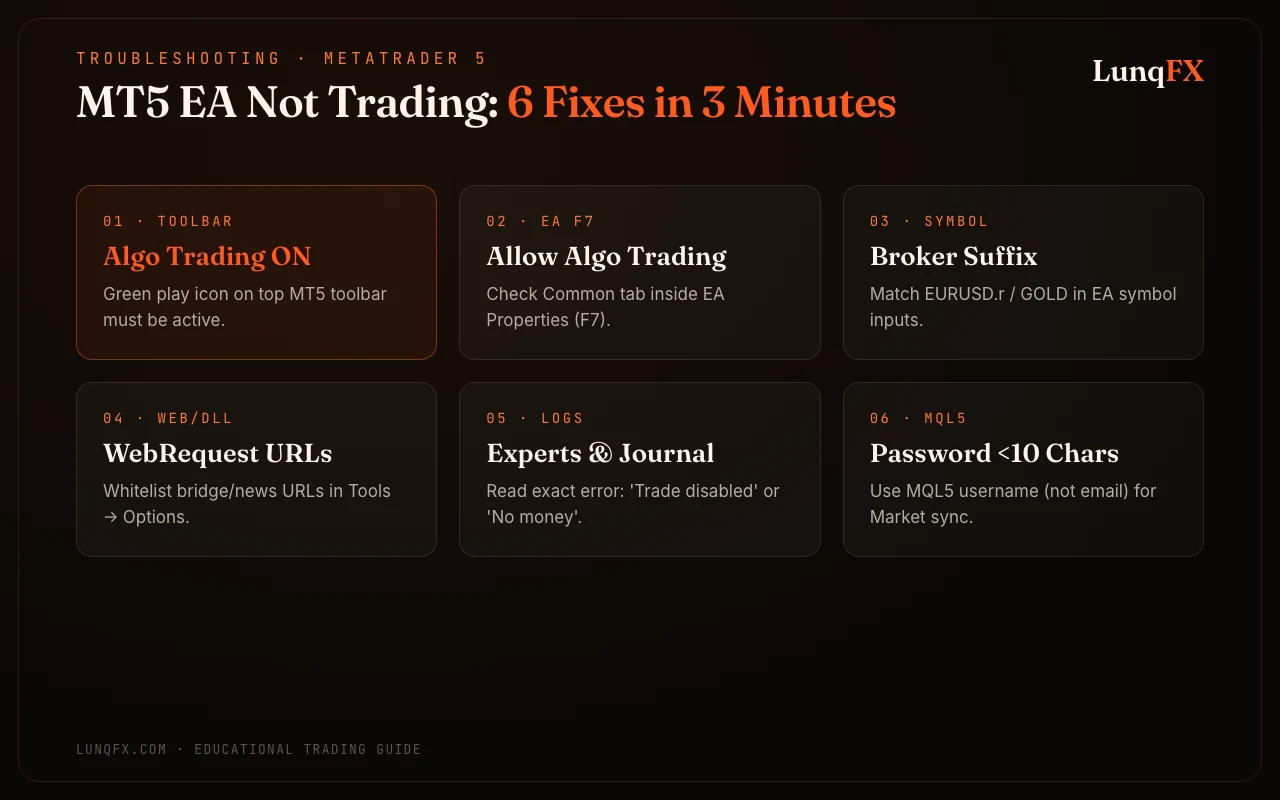
You attach an Expert Advisor to a chart, set your lot size, wait through London and New York, and nothing happens. When you see an MT5 EA not trading, the temptation is to blame the strategy or reinstall MetaTrader 5 from scratch. In practice, roughly 90% of silent EAs are blocked by one of six configuration, broker-naming, or platform-level switches that take under five minutes to isolate.
This guide walks through the exact six-step diagnostic sequence in the order that clears the most common blockers first — from the master Algo Trading button down to broker symbol suffixes, Experts and Journal error codes, and a little-known MQL5 Market activation bug triggered by long account passwords.
Why an MT5 EA Not Trading Sits Idle Without Warning
MetaTrader 5 separates chart attachment from execution permission. You can drop a compiled .ex5 file onto a chart, see its inputs, and even watch its on-chart dashboard update on every tick while the terminal silently blocks every OrderSend() call.
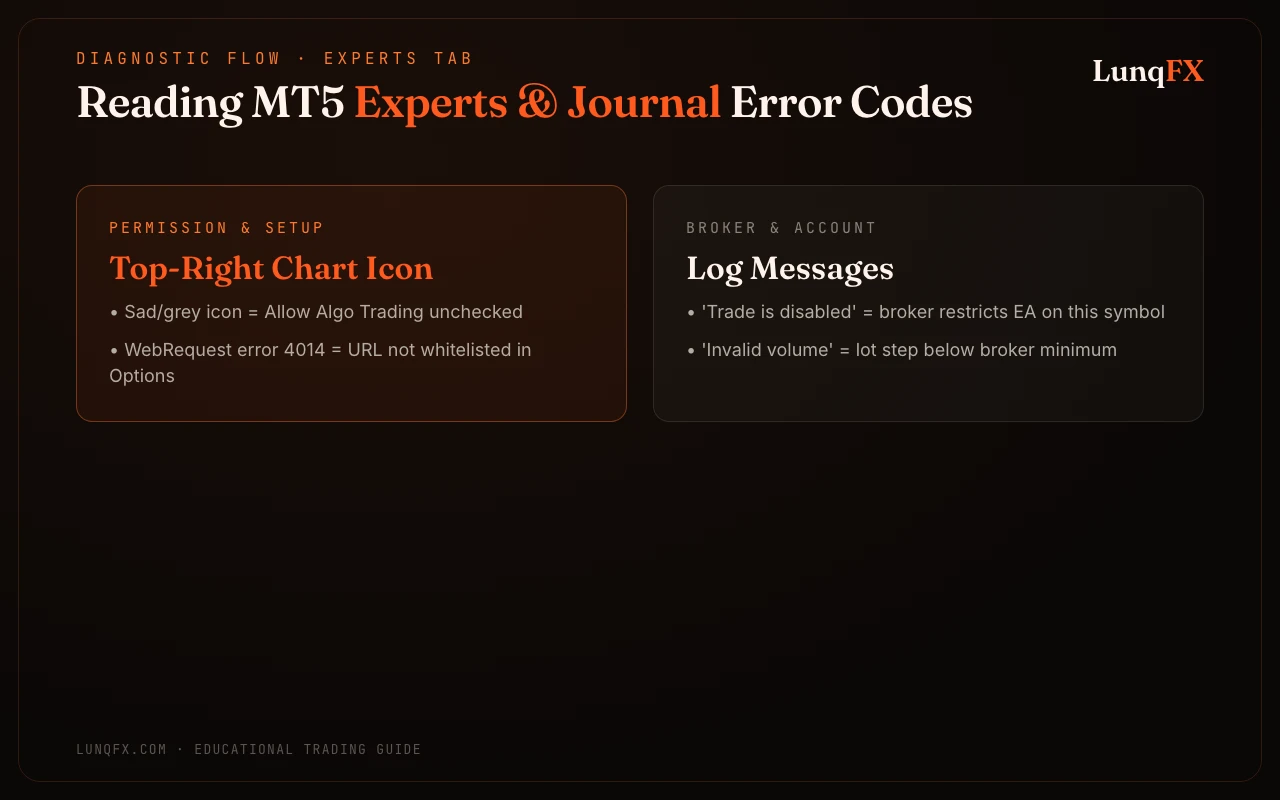
Two status icons in the top-right corner of the chart tell you whether the terminal allows execution at all:
- Blue graduation cap / green play icon: the EA is attached and permitted to trade.
- Grey graduation cap / red stop icon: execution is blocked at either the terminal level or the chart level.
Even with a blue cap, an EA can still sit idle because of a symbol suffix mismatch, a missing WebRequest URL whitelist, a spread filter holding it back during rollover spread widening, or an internal strategy filter waiting for a valid session window. Checking the platform gates first prevents you from tweaking strategy inputs to solve a permissions problem.
Step-by-Step Fix Checklist
Work through these six steps in order. Do not skip straight to Step 5 before verifying Steps 1–4, because an unpermitted EA often writes nothing at all to the logs.
Step 1: Check the Master Algo Trading Button
Look at the main MT5 toolbar at the top of the terminal. The Algo Trading button must show a green play triangle, not a red stop square.
- Keyboard shortcut: press
Ctrl+E(Windows) orCmd+E(Mac via Wine/CrossOver) to toggle it on. - Global setting check: go to
Tools → Options → Expert Advisorsand tick Allow algorithmic trading. - Watch the reset traps: MT5 automatically disables Algo Trading if you switch trading accounts, change your profile, or — if the two sub-checkboxes below it are ticked — whenever you change the chart timeframe or symbol. Untick Disable algorithmic trading when the account has been changed only if you intentionally manage multiple accounts from one terminal; otherwise, leave it ticked as a safety net and re-enable Algo Trading manually after switching.
Step 2: Enable Allow Algorithmic Trading in F7 Properties
Turning on the global button does not override per-chart permissions. Right-click the chart, select Expert Advisors → Properties (or press F7), and open the Common tab.
- Tick
Allow Algo Trading: without this box checked on that specific chart, the EA remains greyed out even when the global toolbar button is green. - Verify
Allow modification of Signals settings: only needed if the EA interacts with MQL5 Signals, but harmless to check. - Confirm the icon: click
OKand check the top-right corner of the chart. If the cap turns blue, chart-level permissions are cleared. If you are unsure whether the.ex5file was placed in the right directory to begin with, follow our guide on how to install an EA in MT5.
Step 3: Clear DLL Imports and WebRequest URL Whitelists
Many modern Expert Advisors pull news calendars, licence checks, or external signals — such as setups bridged via TradingView alerts to MT5 webhooks — over HTTPS or through a .dll library. MT5 blocks both by default.
- DLL imports: in
F7 → Common, tick Allow DLL imports if the developer's documentation requires it. Never enable this globally inTools → Optionsfor unverified third-party files; enable it per chart only for trusted EAs. - WebRequest URLs: open
Tools → Options → Expert Advisors, tick Allow WebRequest for listed URL, and add the exact base URL the EA queries (for examplehttps://nfs.faireconomy.mediafor an economic calendar feed or your licence server URL). - Trailing slash trap: MT5 matches URL prefixes strictly. If the EA calls
https://api.example.com/v1/checkand you whitelistedhttps://api.example.com/v1/check/with an extra slash — orhttp://instead ofhttps://— the request fails with error4014(ERR_FUNCTION_NOT_ALLOWED).
Step 4: Fix Symbol Suffix Mismatches (EURUSD.r, XAUUSDm, .pro)
Brokers routinely append suffixes to symbol names depending on account type: EURUSD.r on raw spread accounts, EURUSDm on micro accounts, EURUSD.pro, or EURUSD_i. This is one of the quietest causes of an MT5 EA not trading.
- Hardcoded symbol lists: multi-pair EAs (or single-chart EAs that read a secondary pair like
DXYorUSDJPY) often look for"EURUSD"by default. If your Market Watch only hasEURUSD.renabled, the EA's symbol lookup returns0bid/ask or4301(ERR_MARKET_UNKNOWN_SYMBOL). - How to fix it: open
F7 → Inputs, look for parameters namedSymbolSuffix,PairPrefix, orPairsToTrade, and enter.r(including the dot) or the exact Market Watch spelling. - Market Watch visibility: press
Ctrl+U(Symbols), search for the base symbol, and ensure the active suffixed symbol is Show (yellow icon) in Market Watch. Hidden symbols cannot be priced or traded by an EA.
Step 5: Read the Experts and Journal Tabs for Error Codes
If permissions and symbol names are clean and your Expert Advisor still sits idle, the answer is sitting in the Toolbox at the bottom of your terminal (Ctrl+T). There are two separate logs, and traders constantly check the wrong one:
Expertstab: records messages printed by the EA itself (Print(),Alert(), licence rejections, spread filters, andOnInitfailures).Journaltab: records terminal-to-broker communication, login drops, trade server rejections, and order execution errors.
| Error / Log Message | Tab | Root Cause | Exact Fix |
|---|---|---|---|
AutoTrading disabled by client (10027) | Journal | Global Algo button or F7 box is off | Enable Ctrl+E and F7 → Allow Algo Trading |
AutoTrading disabled by server (10026) | Journal | Broker disabled EAs on that account type | Contact broker support or switch to an EA-enabled account |
Market closed (10018) | Journal | Weekend, holiday, or rollover pause | Wait for session open; verify symbol trading hours (Ctrl+U → Specification) |
No money (10019) | Journal | Lot size exceeds free margin | Reduce fixed lot or risk percentage in F7 → Inputs |
Invalid stops (10016) | Journal | SL/TP closer than broker Stops level | Widen SL/TP or check broker Stops level in Symbol Specification |
WebRequest to ... failed (4014) | Experts | URL missing from whitelist | Add exact https:// URL under Tools → Options → Expert Advisors |
Cannot load ... [4802] / MQL5 error 1001 | Journal | Corrupted Market download or auth failure | See Step 6 for MQL5 activation and password-length reset |
Pay special attention to filter messages in the Experts tab. An EA like NIGHT OWL or SIESTA is designed to stay flat outside its defined Asian or Tokyo liquidity window; seeing Outside trading hours or Spread 2.4 > MaxSpread 1.5 in the Experts tab means the EA is working correctly, not broken.
Step 6: Resolve the MQL5 Activation and Password-Length Bug
If you purchased or downloaded an EA from the MQL5 Market and the Journal tab prints MQL5 error 1001, Cannot load ..., or Invalid license, you may have hit a known MetaTrader authentication quirk rather than a bad file.
- The password-length bug: MT5's built-in MQL5 Market licence module has historically failed to validate activations when your MQL5 Community password contains more than 16 characters or certain special characters (
&,%,#). The terminal logs you into MQL5 Community inTools → Options → Community, yet silently fails the encrypted.ex5activation handshake. - How to fix it: log into
mql5.comin your browser, shorten your MQL5 password to 12–15 alphanumeric characters, restart MT5, re-enter your credentials inTools → Options → Community, and re-download the EA from the Market → Purchased tab inside Navigator (Ctrl+N). - VPS hardware-ID lock: MQL5 Market EAs bind activations to the Windows machine hardware profile. If you moved the
.ex5file manually from your home PC to a forex VPS for Expert Advisors, copying the file will not work — you must install it directly from thePurchasedtab on the VPS itself (which consumes one activation).
When the EA Is Healthy but Still Not Opening Trades
Once all six steps pass and the Experts tab shows clean initialisation (initialized successfully), an MT5 EA not trading usually comes down to strategy constraints rather than a platform fault. Check three last things before assuming a bug:
- Spread and slippage filters: during thin liquidity or rollover (
21:55–22:15 GMT), spreads widen beyondMaxSpreadparameters. Check the current raw spread in Market Watch (Ctrl+M→ right-click →Spread). - Minimum lot and step size: if an auto-lot formula calculates
0.004lots on a$200balance where the broker's minimum lot is0.01, the EA may skip the trade or throwInvalid volume(10014). - Timeframe and magic number conflicts: some EAs only evaluate signals on
M15orH1bar close — attaching them and watching for 10 minutes proves nothing. Likewise, running two instances of the same EA without changing theMagicNumbercan cause one chart to close or ignore the other's orders. If you also run custom indicators alongside your EA, confirm they are installed cleanly using our MT5 indicator installation checklist.
FAQ
Why is my MT5 EA smiling or blue-capped but not opening trades? A blue graduation cap only means MT5 permits the EA to trade; it does not mean a trade signal has triggered. Check the Experts tab (Ctrl+T) for spread-filter skips, session-time blocks, or Invalid volume messages, and confirm your symbol suffix matches Market Watch.
What does MQL5 error 1001 mean in MetaTrader 5? MQL5 error 1001 indicates an authentication or activation failure between your MT5 terminal and the MQL5 Market servers. It is commonly caused by copying an .ex5 file between machines instead of downloading it via the Purchased tab, or by an MQL5 Community password longer than 16 characters.
How do I fix a symbol suffix mismatch like EURUSD.r in an MT5 EA? Open the EA's Inputs tab (F7) and enter the exact suffix (for example .r or m) in the symbol or suffix field if the EA provides one. Also press Ctrl+U to verify the suffixed pair is enabled and visible in Market Watch.
Why did MT5 turn off Algo Trading on its own? By default, MT5 disables the master Algo Trading button whenever you switch trading accounts, change profiles, or — if enabled in Tools → Options → Expert Advisors — switch the chart's symbol or timeframe. Re-enable Ctrl+E after any account switch.
Where do I see why my MT5 EA rejected a trade? Open the Toolbox (Ctrl+T) and read both the Experts tab (EA-side logic, spread filters, WebRequest errors) and the Journal tab (broker server rejections such as 10018 Market closed, 10019 No money, or 10026 AutoTrading disabled by server).